To turn on PSN 2-step verification, sign in to Account Management on the web, select Security, and choose Edit next to 2-Step Verification Status. Pick an authenticator app or text messages, enter the code you receive, select Activate, and then save your backup codes somewhere safe.
You can also do it from the Settings menu on a PS5 or PS4. If you found us while searching for psnuser.com, this is one of the simplest ways to make your PlayStation account much harder to break into.
Key Takeaways
- 2-step verification asks for a one-time code after your password, so a stolen password alone is not enough.
- You can receive codes through an authenticator app or by text message.
- Setup works on the web, on a PS5, and on a PS4, and the setting applies to your whole account.
- PlayStation gives you 10 backup codes, and each one works only once.
- A sign-in code stays valid for 10 minutes after your sign-in attempt.
What PSN 2-Step Verification Does
Without 2-step verification, your password is the only thing protecting your account. If it leaks or gets typed into a scam page, the account is exposed.
With PSN 2-step verification turned on, signing in takes two things: your password and a short code from your phone. Someone who steals only your password still cannot get in.
The U.S. Cybersecurity and Infrastructure Security Agency explains that people who enable multifactor authentication are significantly less likely to get hacked, because an attacker who steals one factor still cannot pass the second check.
This matters for gamers. Your account may hold purchased games, wallet funds, and saved payment details. Passwords can be stolen through phishing, so it also helps to learn how to spot fake PSN login pages.
Choose Your Verification Method
PlayStation lets you choose how you receive your codes.
| Method | How you get the code | Good to know |
|---|---|---|
| Authenticator app | An app on your phone or tablet, such as Google Authenticator, Microsoft Authenticator, or Authy, shows the code | Does not need a mobile signal; you scan a QR code during setup |
| Text message | PlayStation sends a code to your registered mobile number | Easy to start, but you need signal and access to that number |
| Backup codes | A list of 10 codes you record during setup | Each code works once and helps if your phone is unavailable |
| Passkey | No code to type; you sign in with your device’s fingerprint or face recognition | A password replacement that PlayStation describes as resistant to phishing |
Text messages are the easiest place to start. The UK’s NCSC guidance on setting up 2-step verification notes that texts are not the most secure type, but they still offer a huge advantage over having none.
Authenticator apps are the main alternative. Pick the method you will actually keep using, since you can switch later by turning 2-step verification off and on again.
How to Turn On PSN 2-Step Verification
PlayStation saves security settings to your account, so they apply to all of your devices and consoles. You only need to do this once. If you are new to PlayStation, our PSN Accounts guides cover the basics.
On the Web
- Type playstation.com into your browser yourself and sign in to Account Management.
- Select Security.
- Next to 2-Step Verification Status, select Edit.
- Choose Authenticator App or Text Message.
- Scan the QR code with your authenticator app, or enter your mobile number. If the QR code fails, enter the code shown on screen into your app instead.
- Enter the verification code you receive and select Activate.
- Record your backup codes.
On a PS5 Console
Go to Settings, then Users and Accounts, and open the Security options. On some system versions, Security sits under Account. Select 2-Step Verification, choose your method, enter your details, select Activate, and record your backup codes.
On a PS4 Console
Go to Settings, then Account Management, then Account Information, then Security, and select 2-Step Verification. Then choose a method, activate it, and record your backup codes.
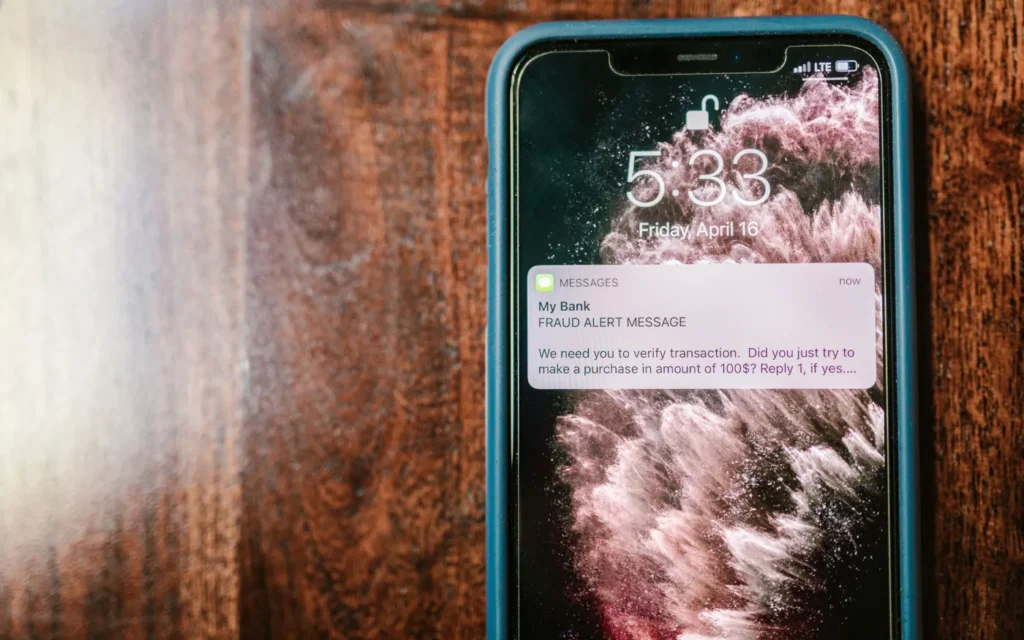
Safety note: only set this up through official PlayStation menus. If a message sends you a link to “activate” 2-step verification, ignore it. Our Online Safety guides explain more ways to avoid scam links.
Save Your Backup Codes
Backup codes are your safety net. PlayStation gives you 10 of them, and each code can be used only once.
If your phone is lost, broken, or out of battery, a backup code lets you sign in without it. Without a record of these codes, you would need to verify your identity with PlayStation Support to recover your account.
- Write them on paper and keep it somewhere private at home.
- Or store them in a trusted password manager.
- Do not post them online or keep them in a shared photo album.
- Never give them to anyone who messages you, even someone claiming to help.
You can view your codes later by signing in to Account Management and selecting Security, then Backup Codes. If you have used most of them, you can get a fresh set by turning 2-step verification off and reactivating it.
Signing In After You Turn It On
You will be asked for a code at your first sign-in after turning it on, after you manually sign out, when you reset your password, and when you change your sign-in ID or online ID.
Enter your sign-in ID and password as usual, then type the code from your app or text message. The code is valid for 10 minutes. If it expires, select Resend Code.
If Codes Are Not Arriving
For text messages, check that airplane mode is off and that you have a mobile signal. Give the message a little time before asking for another one.
If you still cannot get a code, select Trouble Receiving Code? on the sign-in screen and choose the option to sign in using a backup code.
If You Change Phones or Get Locked Out
If you lose your old phone, sign in with a backup code, then turn 2-step verification off and on again with your new phone. If you have no backup codes and no access to your mobile number, you will need to contact PlayStation Support. Our guide to recovering a locked PSN account explains what to expect.
One more warning: if you receive verification codes you did not ask for, someone may know your password. Change it through the official site and contact PlayStation Support.
Once your account is protected, take a few minutes to manage your PSN profile privacy so strangers see less about you. To explore other topics, start with our psnuser.com overview.
Frequently Asked Questions
Do I need to set up PSN 2-step verification on every console?
No, PlayStation saves security settings to your account, so they apply to all of your devices and consoles. You only need to turn it on once, on the website, a PS5, or a PS4. After that, you will be asked for a code at certain sign-ins, such as after signing out.
How long does a PSN verification code last?
A sign-in code is valid for 10 minutes after your sign-in attempt. If you wait longer, the code stops working, and you need to select Resend Code to get a new one. Backup codes work differently, since each of your 10 codes can be used one time.
What happens if I lose my phone and my backup codes?
You will need to contact PlayStation Support and verify your identity to recover your account. This is why saving your backup codes matters so much. Once you are back in, set up 2-step verification again with your new phone and store the fresh backup codes somewhere safe and private.
Is it safe to turn on 2-step verification through a link someone sends me?
No, only turn it on through official PlayStation menus on your console or by typing playstation.com yourself. A site such as psnuser.com, which currently shows only a hosting provider’s default page, is not a place to manage your account. Never share your codes with anyone.